WordPress使用WebP格式图片可以有效地加快网页的打开速度,尤其是对于图片量比较大且每天的访问量多的网站来说,使用WebP格式的图片不仅可以加快网页的打开速度,还可以节省CDN流量费用,不管是对用户还是对于站长来说都是一件好事。
目前,市面上绝大多数的浏览器已经支持WebP格式的图片了,安卓手机几乎全部可以查看WebP了,而最新版的苹果手机系统和浏览器也可以支持WebP,所以将Wordpress的图片替换为WebP是未来大的趋势。不过,当前将图片换成WebP图片还需要一个折衷的办法。
那就是:浏览器自适应。为了可以照顾到所有的浏览器的访问体验,那就是当检测到浏览器支持WebP格式图片时我们推送WebP格式图片对用户,当检测到用户的浏览器不支持WebP格式图片,我们推送常用的JPG、PNG等格式图片,实现智能自动化的WebP。

这篇文章就来分享一下Wordpress启用WebP格式图片三种方法:Nginx配置、WordPress插件法和CDN自适应方法。更多的关于Wordpress加速的教程这里还有:
- 利用Cachify插件将WordPress页面缓存到Memcached实现优化加速
- 用Algolia给WordPress添加实时站内搜索功能-搜索质量更高内容更准
- WordPress AMP移动优化-打造适合移动搜索引擎和手机浏览访问WP
PS:更新记录.
1、国外有非常多的免费CDN加速服务,参考:国外十大CDN加速服务-适合网站全球CDN加速,防DDos攻击,企业个人建站使用。2021.5.9
2、Wordpress优化加速是一个系统工程,需要全方位地对WP的速度进行优化才可以达到秒开的效果:WordPress优化专题汇总-实用的WordPress性能和速度优化教程总结。2021.3.28
3、利用FFmpeg可以直接在本地将图片转换为WebP格式的图片,方便快捷:免费开源的视频音频格式转换和压缩软件FFmpeg-快速转换格式和压缩视频。2020.12.18
一、Nginx配置WebP自适应
1.1 Nginx规则配置
假设你的网站图片在相同的路径下已经有了WebP格式的副本,例如:/wp-content/uploads/2019/08/webp_07.png,同样也有:wp-content/uploads/2019/08/webp_07.png.webp。
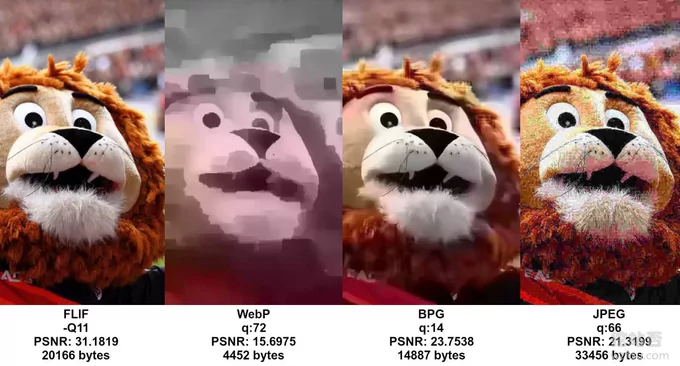
我们要实现的功能就是让Nginx自动判断,根据浏览器是否支持WebP来自动推送相应格式的图片,如果不存在WebP格式副本,那么自动默认推荐原图片。

一个完整的Nginx配置WebP自适应规则如下:
1.2 Nginx规则说明
Only three parts are important: mime.types should list webp, we should define a variable depending on Accept header, and we should use it in try_files.
mime.types
nginx uses a file to list mappings from file extensions to MIME types. Usually it is called mime.types, and included externally. Make sure that it lists webp:
map
map defines a variable that depends on values of other variables (see ngx_http_map_module for details). This module is included in nginx by default, you don’t need to recompile anything.
map $http_accept $webp_suffix {
  default   "";
  "~*webp"  ".webp";
}
This http-level snippet defines a variable called $webp_suffix, which depends on $http_accept (our HTTP Accept header). If the header contains "webp" substring (using a case-insensitive regular expression), than our variable will be set to ".webp", otherwise it will be an empty string.
In our case, it means that adding our variable does not affect serving other non-image files.
try_files
This is a workhorse of the solution:
try_files $uri$webp_suffix $uri =404;
This location-level directive checks files conditionally breaking on success:
- Checks a file + a possible
".webp"suffix, and serves it, if it is found. - Checks a file as it was requested, and serves it, if it is found.
- Sends
HTTP404(AKA “not found”), if not found.
基本原理:
Let’s go over it in details. We assume that we have file called image.png and its possible counterpart image.png.webp.
当一个接受WebP格式的浏览器发送图片请求时:
$webp_suffix is set to “.webp”.
try_files tries image.png.webp. It is served, if found. 尝试返回xxx.png.webp格式图片
Otherwise try_files tries image.png (the original file). It is served, if found. 没有找到webp格式,返回原图。
Otherwise “not found” is returned.
当一个不接受WebP格式的浏览器发送图片请求时:
$webp_suffix is set to “”.
try_files tries image.png. It is served, if found. 直接尝试返回原图。
Otherwise try_files tries again image.png (the original file). While it is clearly redundant, it is unlikely that image is not found. If this is a common situation for an application you develop, remember that nginx caches files, so it will be amortized.
Otherwise “not found” is returned.
try_files is a core module directive. It may check files on disk, redirect to proxies, or internal locations, and return error codes, all in one directive. See try_files for more details.
1.3 ngx_pagespeed模块
上面用Nginx根据浏览器判定是否接受WebP然后自适应返回缺点很明显:如果你的图片用上了CDN就不行了。因为当URL被替换为CDN的URL后,你的图片请求被直接送到了CDN服务器了,至于CDN返回什么我们就无法控制了。
这里有一个一劳永逸的办法:ngx_pagespeed模块。ngx_pagespeed模块主要是通过改写HTML、CSS、JS文件源码以及图片、SSL等达到加速网站的效果,几乎涵盖了所有 Google PageSpeed Insights 所有的优化建议。

ngx_pagespeed可以自动将图片转换为WebP格式(会自动判断是否有必要,有些图片转换后可能变小),自动根据浏览器的请求来提供相应格式的图片,同时可自定义CDN域名,实测使用CDN后依然可以正常返回WebP图片。教程:
二、WP自适应WebP插件
插件:
- https://wordpress.org/plugins/webp-express/
- https://wordpress.org/plugins/webp-converter-for-media/
目前Wordpress已经有不少的插件可以让Wordpress自适应WebP格式的图片了:WebP Express和WebP Converter for Media。经过测试,WebP Express在对于CDN兼容性方面做得不错,其它在WebP格式转换方面两者不分伯仲。
2.1 安装PHP扩展
无论是WebP Express还是WebP Converter for Media,在将图片转换为WebP格式都依赖于imagick、gmagick、gd等PHP组件。如果你用的是Oneinstack,可以直接使用脚本一键安装imagick。
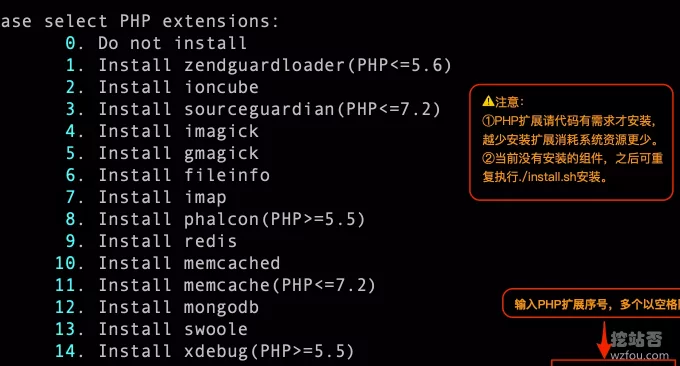
如果你想要安装GD库,Oneinstack的话需要先卸载当前的PHP,然后编辑options.conf,在PHP后面添加上参数:--with-webp,然后再安装一次PHP即可。php7.3及之前的要用--with-webp-dir。宝塔面板请使用以下命令解决:
2.2 WebP Converter for Media
到官网选择安装WebP Converter for Media插件,然后启用。插件首先让你选择要转换格式的图片以及路径。
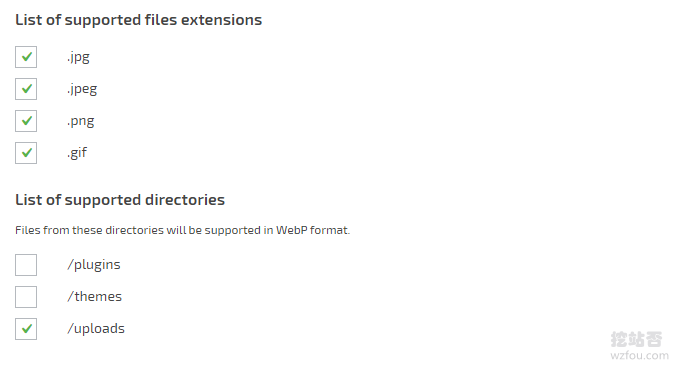
选择WebP格式转换的方式,以及质量,一般默认的85即可。
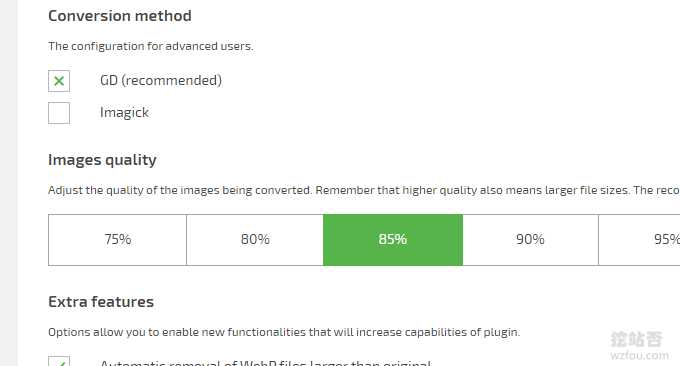
然后就是是否定时转换、开启浏览器缓存、自动移除大于原图的WebP等设置。
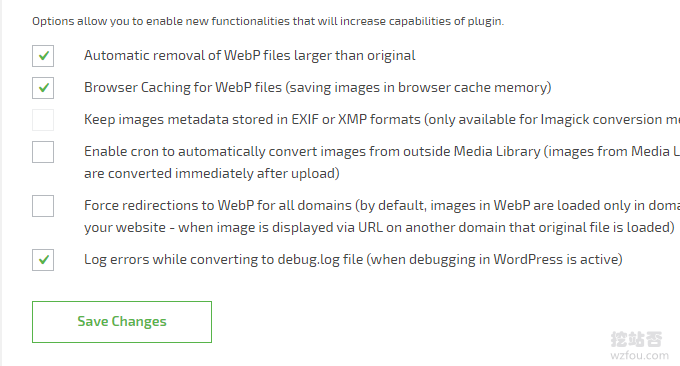
WebP Converter for Media还提供一个批量转换WebP的功能,一般是初次安装好了插件后使用,因为执行一次转换要消耗不少的内存和CPU。

WebP Converter for Media批量转换可以看到实时进度,同时也可以看到插件会自动将大于原图的WebP移除。
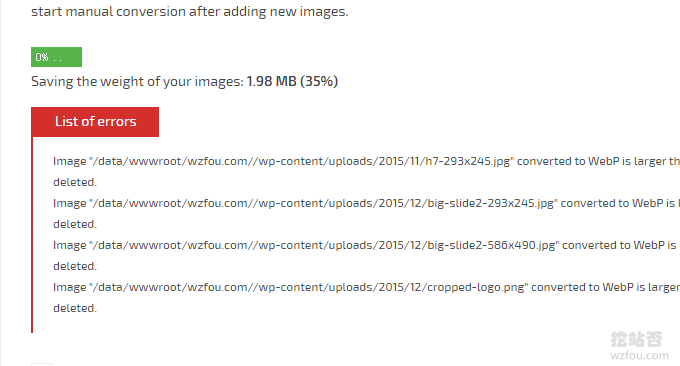
配置Nginx自动推送WebP:
(此步可以省略,因为大多数编译的LNMP都自动加上了)Please edit the configuration file:
添加以下代码:
找到你自己的网站的Nginx配置文件,添加以下代码:
2.3 WebP Express插件
直接到官网安装WebP Express插件,是设置操作模式、哪些图片需要转换格式、图片路径等等。
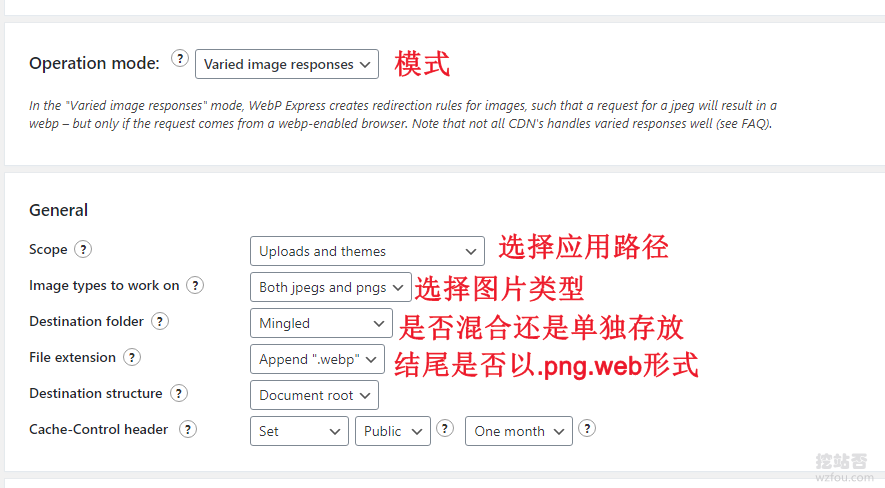
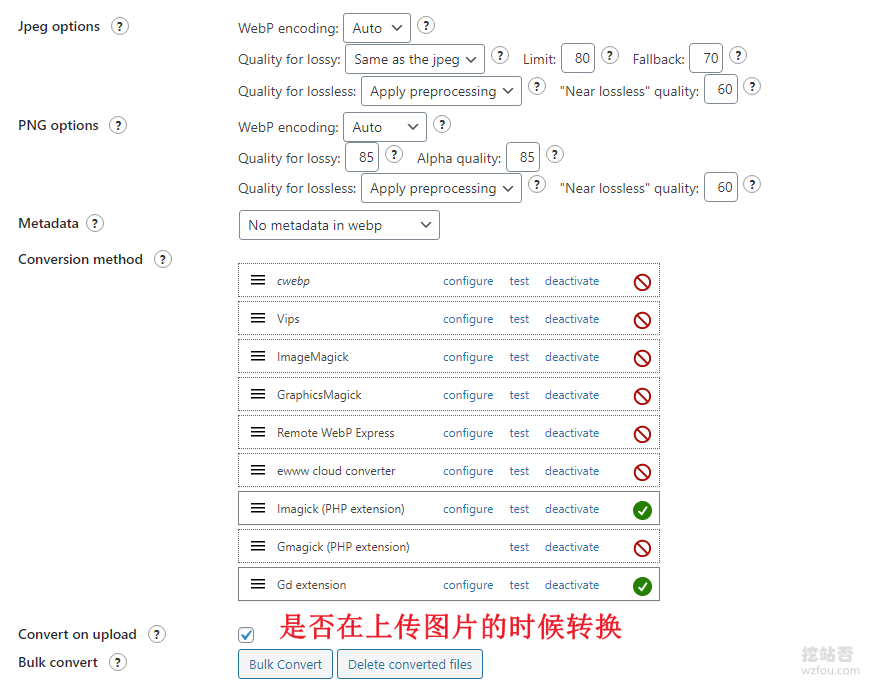
在插件下方还有设置WebP格式图片的质量,一般默认即可,最后是选择是否在图片上传时转换格式以及批量转换格式。(点击放大)
修改Html。如果你的图片采用了CDN,WebP Express提供了修改Html的功能,它可以在你启用CDN时保证浏览器可以访问到WebP格式的图片,同时“Replacing <img> tags with <picture> tags”适用于开启了页面缓存的WP。(例如使用了缓存插件:W3 Total Cache)

修改Nginx规则(实现自动跳转到webP图片以及自动转换为WebP格式图片):
作者在官网也提供非常多的Nginx配置规则,如果你发现上述没有起作用,可以试试其它的:https://wordpress.org/plugins/webp-express/#i am on nginx or openresty
三、CDN自适应WebP
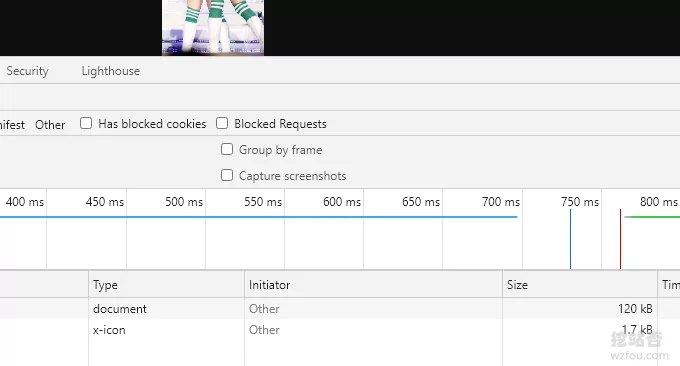
上面的操作对于一般人来说觉得太麻烦了,你可以直接使用CDN,让CDN来选择是否给浏览器推送WebP转换格式,据目前了解,也就是又拍云有这一项功能,其它的CDN服务商暂时没有发现。

四、总结
WebP Express还是WebP Converter for Media提供了自动将图片转换为WebP格式的功能,不过PHP请求—转换会消耗大量的资源,不防我们先手动将所有的图片都转换为WebP,方法参考:1.2 批量转化Webp。
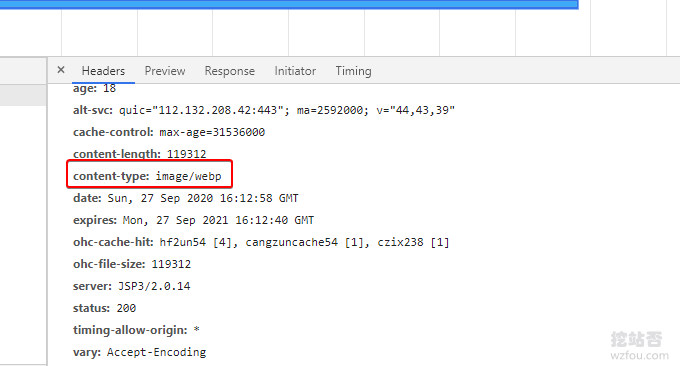
如果你有使用又拍云的话WebP是最方便的,不仅免去了自己转换格式的麻烦,还可以让CDN自动判断图片类型,省时省力,希望其它的CDN服务商也可以把这个功能加进来。

文章评论